How to Set Up IPTV on LG TV: A Comprehensive Guide
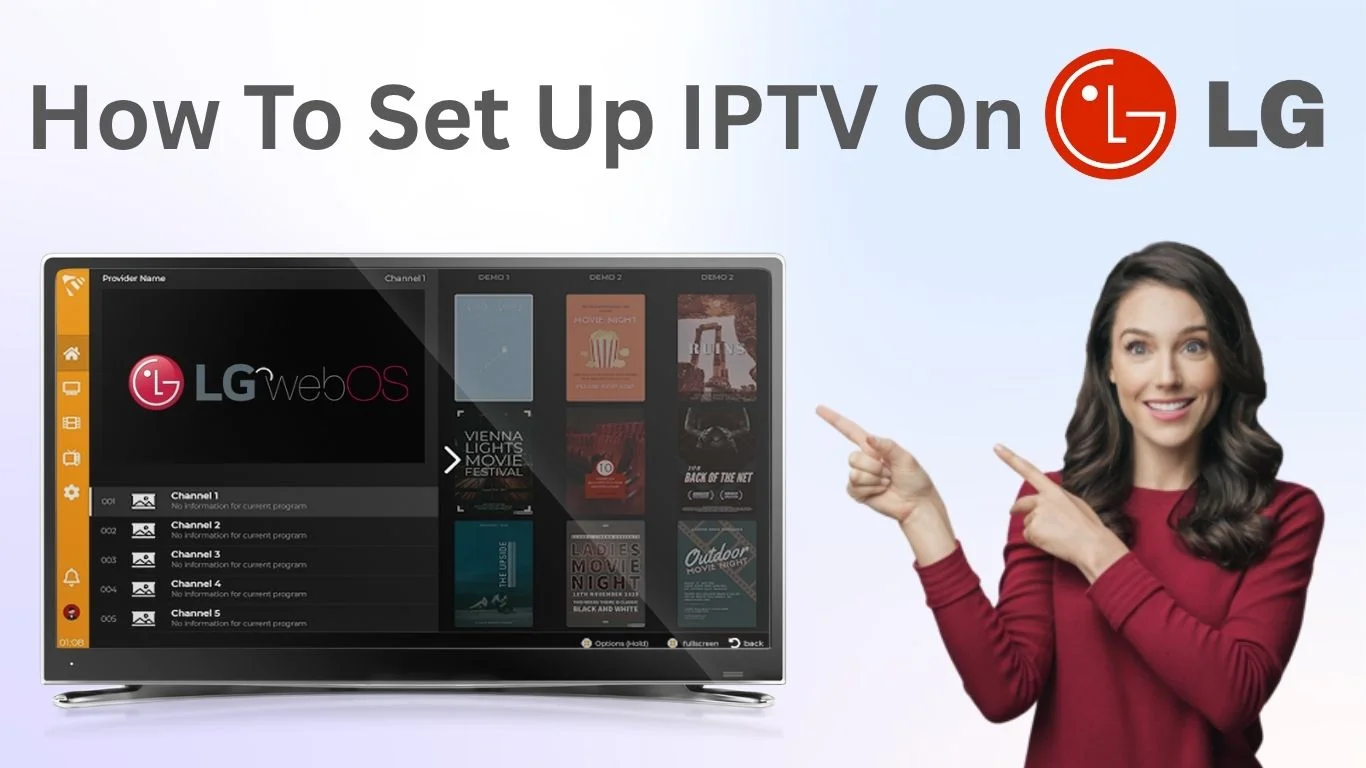
Introduction
Understanding IPTV and LG TVs
What is IPTV?
Benefits of IPTV
- On-Demand Content: Watch movies, shows, and videos anytime.
- Live Streaming: Access live channels just like cable TV.
- Interactive Features: Pause, rewind, or record live TV.
LG TV Models Compatible with IPTV
| LG OLED CX | 2020 | AI Picture, HDMI 2.1, WebOS 5.0 |
| LG NanoCell 90 | 2020 | 4K UHD, Dolby Vision, WebOS 5.0 |
| LG UHD UN73 | 2020 | 4K UHD, ThinQ AI, WebOS 5.0 |
Preparing for IPTV Setup
Required Equipment and Software
- A compatible LG TV
- Stable Internet Connection (25 Mbps recommended)
- IPTV Subscription
- IPTV App such as Smart IPTV or SS IPTV from the LG Content Store
Choosing the Right IPTV Service
Factors to Consider
- Reliability and uptime
- Channel Variety
- Customer Support
Comparison of Popular IPTV Services
4K UK IPTV | $13 | 29000+ | 4.5/5 |
Smarters IPTV | $10 | 1500+ | 4.2/5 |
IPTV Streams | $12 | 1800+ | 4.3/5 |
Step-by-Step Guide: Setting Up IPTV on LG TV
1. Installing the IPTV App
- Turn on your LG TV and connect to Wi-Fi.
- Go to the LG Content Store.
- Search for an IPTV app (Smart IPTV, SS IPTV, etc.).
- Select Install.
- Open the app once installed.
2. Configuring Your IPTV App
- Launch the IPTV app.
- Open Settings.
- Enter your IPTV subscription details — M3U playlist URL or Xtream Codes API.
- Adjust video quality and buffering settings.
- Save settings and enjoy streaming.
Troubleshooting Common Issues
IPTV App Not Working? Try This:
- Check your internet connection.
- Update your IPTV app from the LG Content Store.
- Uninstall → Reinstall the app.
Buffering or Poor Streaming Quality
- Ensure your internet speed meets the minimum requirements.
- Close extra apps on the LG TV.
- Lower streaming quality inside the IPTV app.
Enhancing Your IPTV Experience
Using a VPN for IPTV
VPN Benefits
- Privacy Protection
- Bypass ISP Blocks
- Access Geo-Restricted Channels
How to Use VPN on LG TV
- Install a VPN app from LG Content Store (if supported) OR
- Configure VPN on your router
- Connect to a server → open IPTV app → start streaming.
Advanced IPTV Features
- Recording Programs
- Electronic Program Guide (EPG)
- Parental Controls
Frequently Asked Questions (FAQs)
1. Can I use IPTV on older LG TVs?
2. What if my IPTV service is blocked?
- Use a VPN
- Switch to a more reliable IPTV provider.
3. How do I update my IPTV app?
- Open LG Content Store
- Go to My Apps
- Select the IPTV app → Update
Conclusion
Conclusion
To conclude, How to Set Up IPTV on LG TV: A Comprehensive Guide provides valuable insights into improving your IPTV experience on any device.
By following the steps in this guide, you can enjoy smooth and high-quality streaming with ease.
Always rely on a trusted IPTV provider, keep your app updated, and maintain a stable internet connection for the best performance.
For reliable IPTV services in the UK, visit
4K Subscription —
your go-to destination for premium IPTV UK subscriptions.
Contact Us
Have questions or need assistance? We're here to help!
Get in Touch
Email Us
contact@4kukiptv.shop
Available 24/7
Call Us
+447424116014
Available 24/7
Live Chat
Available on our website
Response time: Under 5 minutes
Our Hours
Customer Support: 24/7
Sales Department: Mon-Fri, 9am-6pm GMT
Technical Support: 24/7