4k Iptv Services
Introduction
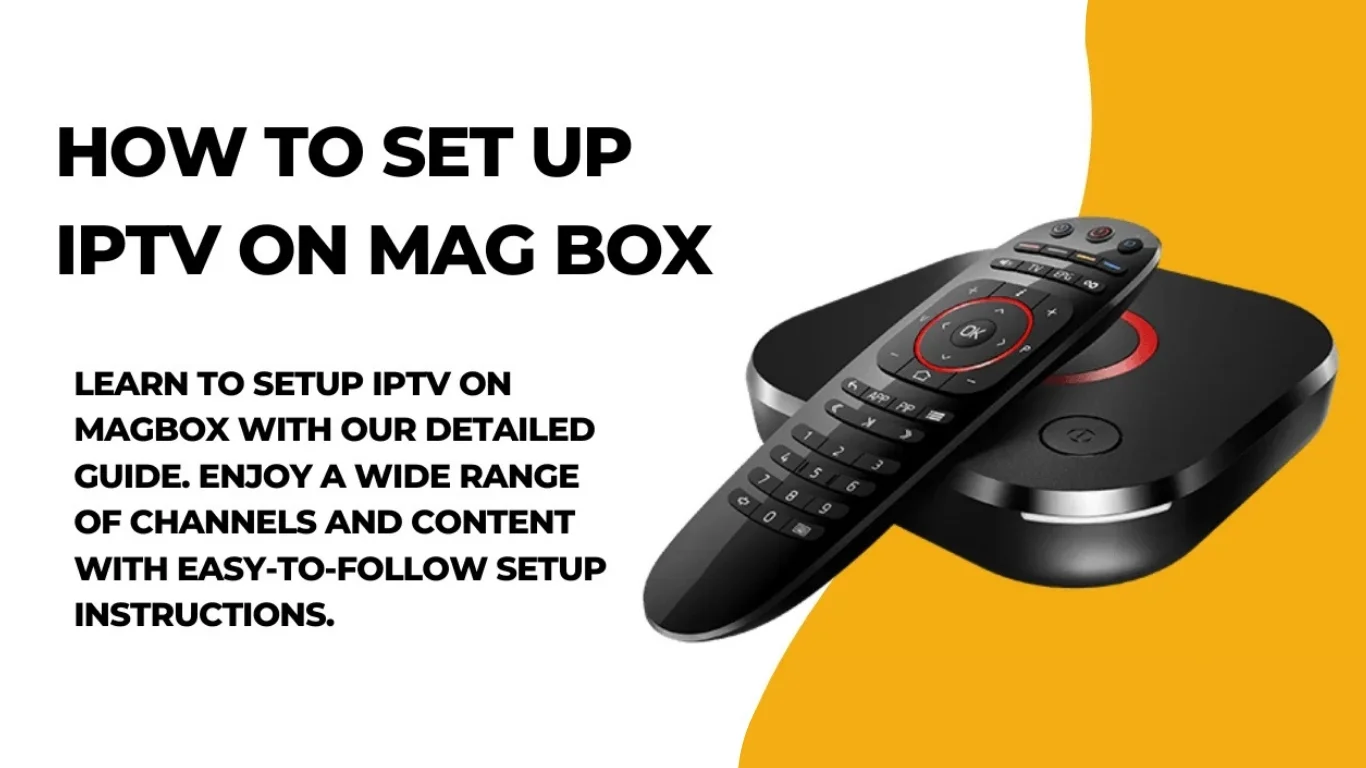
What Is a MAG Box?
Key Features of MAG Boxes:
- Supports 4K IPTV services for ultra HD streaming.
- Offers Ethernet and Wi-Fi connectivity.
- User-friendly interface ideal for beginners.
- Compatible with Stalker Middleware or Xtream Codes API.
- Fast boot time and minimal buffering.
Requirements Before Setting Up IPTV on MAG Box
- MAG Box (MAG 250, MAG 254, MAG 322, MAG 410, MAG 524, etc.)
- Stable Internet Connection (minimum 15 Mbps for HD/4K)
- TV or Monitor with HDMI port
- Subscription from a Reliable IPTV UK Provider
- Portal URL (provided by your IPTV service)
- Remote Control (comes with the MAG Box)
- Power Adapter and HDMI Cable
Step-by-Step Guide: How To Set Up IPTV on MAG Box
Step 1: Connect Your MAG Box to Your TV
- Plug one end of the HDMI cable into your MAG Box and the other into your TV.
- Connect the power cable and turn on the device.
- Use your TV remote to select the correct HDMI input.
Step 2: Connect to the Internet
- Wired Connection: Plug an Ethernet cable directly from your router to the MAG Box for a stable connection.
- Wireless Connection:
- Go to Settings > Network > Wireless (Wi-Fi)
- Select your Wi-Fi network and enter your password.
Step 3: Locate the MAC Address

- On the bottom of your MAG Box, or
- In Settings > System Info > Device Info.
Step 4: Configure the Portal URL
- Go to Settings > System Settings > Servers > Portals.
- You’ll see fields like:
- Portal 1 Name: (e.g., UK IPTV)
- Portal 1 URL: (enter the URL provided by your IPTV provider)
- Leave Portal 2 empty unless you have another provider.
- Press OK or Save, then reboot your device.
Step 5: Navigating the IPTV Interface
- Live TV Channels – categorized by genre or country.
- VOD (Video On Demand) – movies, TV shows, and documentaries.
- EPG (Electronic Program Guide) – schedules of upcoming programs.
- Settings – adjust subtitles, resolution, and audio options.
Step 6: Troubleshooting Common Issues
1. No Signal / Blank Screen
- Check HDMI cable connection.
- Ensure the correct HDMI input is selected on your TV.
2. Portal Not Loading
- Recheck your Portal URL for typos.
- Confirm your internet connection is stable.
- Restart both your router and MAG Box.
3. MAC Address Not Registered
- Ensure you’ve provided the correct MAC address to your provider.
- Contact your IPTV subscription support team for activation.
4. Buffering or Freezing Streams
- Switch to a wired Ethernet connection.
- Lower the video resolution.
- Use a VPN if your ISP throttles IPTV traffic.
Step 7: Update Firmware (Optional but Recommended)
- Go to Settings > System Settings > Software Update
- Choose Update Automatically or USB Update (if downloaded manually)
- Restart the box after updating.
Alternative Setup: Xtream Codes API (For Advanced Users)
- Server URL
- Username
- Password
- Go to Settings > Advanced Settings > Add Portal.
- Select Use Xtream Codes API.
- Enter your login credentials.
- Save and restart the box.
Benefits of Using IPTV on MAG Box
- High-Quality Streaming – Supports HD and 4K IPTV services.
- User-Friendly Interface – Easy navigation and instant channel loading.
- Reliable Performance – Designed specifically for IPTV streaming.
- Multiple Portal Support – Connects to multiple providers if needed.
- Parental Control and EPG Integration – Ideal for family use.
Best Practices for Smooth IPTV Experience
- Always use a wired connection for optimal stability.
- Avoid cheap or unverified IPTV links.
- Keep your device’s firmware updated.
- Reboot your MAG Box weekly to clear cache.
- Use VPN for privacy and improved streaming speeds.
FAQs: How To Set Up IPTV On MAG Box
Q1: Can I use any IPTV provider on a MAG Box?
Q2: What is the difference between Portal URL and Xtream Codes?
Q3: Do I need a VPN for IPTV?
Q4: Can I install apps on my MAG Box?
Q5: Why is my IPTV freezing?
Q6: Is IPTV legal in the UK?
Conclusion
Simple, Transparent Pricing
Choose the plan that works best for you. All plans include our 30-Day Money-Back Guarantee.
Limited Time Flash Sale!
Prices will return to normal after the timer ends.
Monthly
Perfect for trying out our service
-
28,000+ Live TV Channels
-
Full HD & 4K Quality
-
7-Day Catch Up
-
VOD Library (Movies & Series)
-
Use on 1 Device
-
24/7 Support via WhatsApp
3 Months
Great value for short term
-
28,000+ Live TV Channels
-
Full HD & 4K Quality
-
7-Day Catch Up
-
VOD Library (Movies & Series)
-
Use on 2 Devices Simultaneously
-
24/7 Support via WhatsApp
-
Save over 20% vs Monthly
Annual
Best value for loyal customers
12 Months + 2 Months FREE
-
28,000+ Live TV Channels
-
Full HD & 4K Quality
-
7-Day Catch Up & Recording
-
Premium VOD Library (Updated Daily)
-
Use on 3 Devices Simultaneously
-
VIP 24/7 Support
-
Save over 60% vs Monthly
-
Free Setup Assistance
Quarterly
Popular choice for commitment
-
28,000+ Live TV Channels
-
Full HD & 4K Quality
-
7-Day Catch Up & Recording
-
Extensive VOD Library
-
Use on 2 Devices Simultaneously
-
Priority 24/7 Support
-
Early access to new features
Secure Payment Options
We accept various secure payment methods for your convenience.
Ready for a Longer Test Drive?
Experience the full power of 4K Subscription IPTV with our exclusive 24-hour free trial. Access all 28,000+ channels, VOD, and premium features with no obligation. It's the perfect way to see why we're the UK's favourite IPTV provider!
Contact Us
Have questions or need assistance? We're here to help!
Get in Touch
Email Us
contact@4kukiptv.shop
Available 24/7
Call Us
+447424116014
Available 24/7
Live Chat
Available on our website
Response time: Under 5 minutes
Our Hours
Customer Support: 24/7
Sales Department: Mon-Fri, 9am-6pm GMT
Technical Support: 24/7