Iptv Troubleshooting Guide

Introduction
If you’re an IPTV viewer, nothing is more frustrating than a stream that won’t play. IPTV playback errors can interrupt your favourite show or live match, leaving you scrambling for solutions. Whether you use an IPTV UK Provider, a UK IPTV Service, or a 4K IPTV Subscription, playback issues often share the same root causes — and can be fixed with a few simple steps.
This guide covers everything you need to know about diagnosing and fixing IPTV playback errors so that you can enjoy smooth, uninterrupted streaming.
1. Understanding IPTV Playback Errors
What Is IPTV Playback?
Internet Protocol Television (IPTV) delivers TV channels and media over the internet instead of traditional cable or satellite. Playback refers to the process of streaming these channels or on-demand content on your device.
What Causes IPTV Playback Errors?
There are several common causes:
- Poor internet connection
- Outdated app or player
- Server issues from your IPTV provider
- Incorrect playlist or URL setup
- Device compatibility problems
- ISP throttling or blocking IPTV traffic
2. Common IPTV Playback Errors and Their Meanings
| Error Message | Likely Cause | Suggested Fix |
|---|---|---|
| “Playback failed” | Unstable internet or missing codec | Check connection or update player |
| “Stream unavailable” | Provider server issue | Wait or contact provider |
| “Buffering…” | Low internet speed | Reduce stream quality or restart router |
| “HTTP error 403/404” | Invalid or expired playlist link | Update your M3U or Xtream code |
| “Decoder error” | Player incompatibility | Use VLC, TiviMate, or IPTV Smarters |
3. Step-by-Step IPTV Playback Error Troubleshooting
Step 1: Check Your Internet Connection
- Test your connection speed (minimum 10 Mbps for HD and 25 Mbps for 4K).
- Restart your router.
- Use a wired Ethernet connection instead of Wi-Fi for stability.
Step 2: Restart the IPTV App or Device
A simple reboot can clear cached data or stuck processes that interfere with playback.
Step 3: Update the IPTV App or Player
Ensure your IPTV player (such as VLC, IPTV Smarters, or TiviMate) is updated to the latest version. Outdated apps often cause playback and codec issues.
Step 4: Verify Playlist or URL
If your playlist has expired or been mistyped, playback will fail.
- Double-check your M3U playlist URL or Xtream Codes API credentials.
- Reload or reimport the list.
Step 5: Clear Cache and App Data
Old cache files may interfere with playback. Clear the app cache from your device settings.
Step 6: Check for Server-Side Problems
Sometimes, the issue isn’t on your end. IPTV servers may be under maintenance or overloaded. Contact your provider or test the link on another device.
Step 7: Adjust Stream Quality
Lowering the resolution (e.g., from 4K to 1080p or 720p) can reduce buffering when bandwidth fluctuates.
Step 8: Use a VPN
If your ISP blocks or throttles IPTV traffic, using a VPN can help bypass restrictions and stabilise your connection.
Step 9: Switch IPTV Players
Try a different player to rule out compatibility issues:
- VLC Media Player
- GSE Smart IPTV
- TiviMate
- IPTV Smarters Pro
Step 10: Reinstall the Application
If all else fails, uninstall and reinstall your IPTV app to refresh all configurations and libraries.
4. Device-Specific Troubleshooting Tips
Smart TVs (Samsung, LG, etc.)
- Update your TV firmware.
- Remove and reinstall the IPTV app.
- Avoid loading excessively large playlists.
Android TV Boxes
- Clear app cache and data frequently.
- Disable background apps consuming bandwidth.
- Keep your device OS updated.
Firestick or Fire TV
- Use “Force Stop” on the IPTV app.
- Clear cache/data.
- Sideload the latest version of your IPTV player.
Mobile Devices (iOS & Android)
- Close unused apps.
- Switch to mobile data to test your home Wi-Fi.
- Update the IPTV player app regularly.
5. Preventing Future IPTV Playback Errors
To maintain smooth IPTV performance:
- Use a stable high-speed internet connection.
- Keep your apps and firmware updated.
- Regularly refresh your IPTV playlist.
- Avoid using multiple devices on the same account simultaneously (if not supported).
- Use a reliable VPN for consistent access.
6. When to Contact Your IPTV Provider
If none of these steps work, the problem could be on the provider’s end. Reach out with:
- Your username and account info
- Device details (e.g., Firestick, Smart TV)
- Screenshot of the error message
A legitimate UK IPTV Service will have technical support available to guide you through specific fixes.
FAQs About IPTV Playback Error Troubleshooting
Q1: Why does my IPTV stream keep buffering?
Buffering usually indicates a slow or unstable internet connection. Lower the resolution or check your Wi-Fi signal strength.
Q2: What’s the best internet speed for IPTV?
For SD content, 5 Mbps may work; for HD or 4K IPTV subscriptions, aim for at least 25 Mbps.
Q3: Can a VPN fix IPTV playback errors?
Yes, if your ISP throttles or blocks IPTV traffic, a VPN can improve stability and bypass restrictions.
Q4: Why do only certain channels fail to load?
That’s often due to server-side issues or outdated playlist links. Reload or refresh your list.
Q5: Does IPTV work on all smart TVs?
Not all smart TVs support third-party IPTV apps. You may need an external device like a Firestick or Android TV box.
Conclusion
IPTV playback error troubleshooting doesn’t have to be overwhelming. By systematically checking your internet, app settings, playlist, and device, most playback issues can be resolved quickly. Staying proactive, updating apps, maintaining network health, and using reliable services ensures a smooth and enjoyable IPTV experience every time.
For a deeper understanding of how streaming technology and protocols work, you can read about Internet Protocol Television on Wikipedia.
Iptv Troubleshooting Guide
Introduction
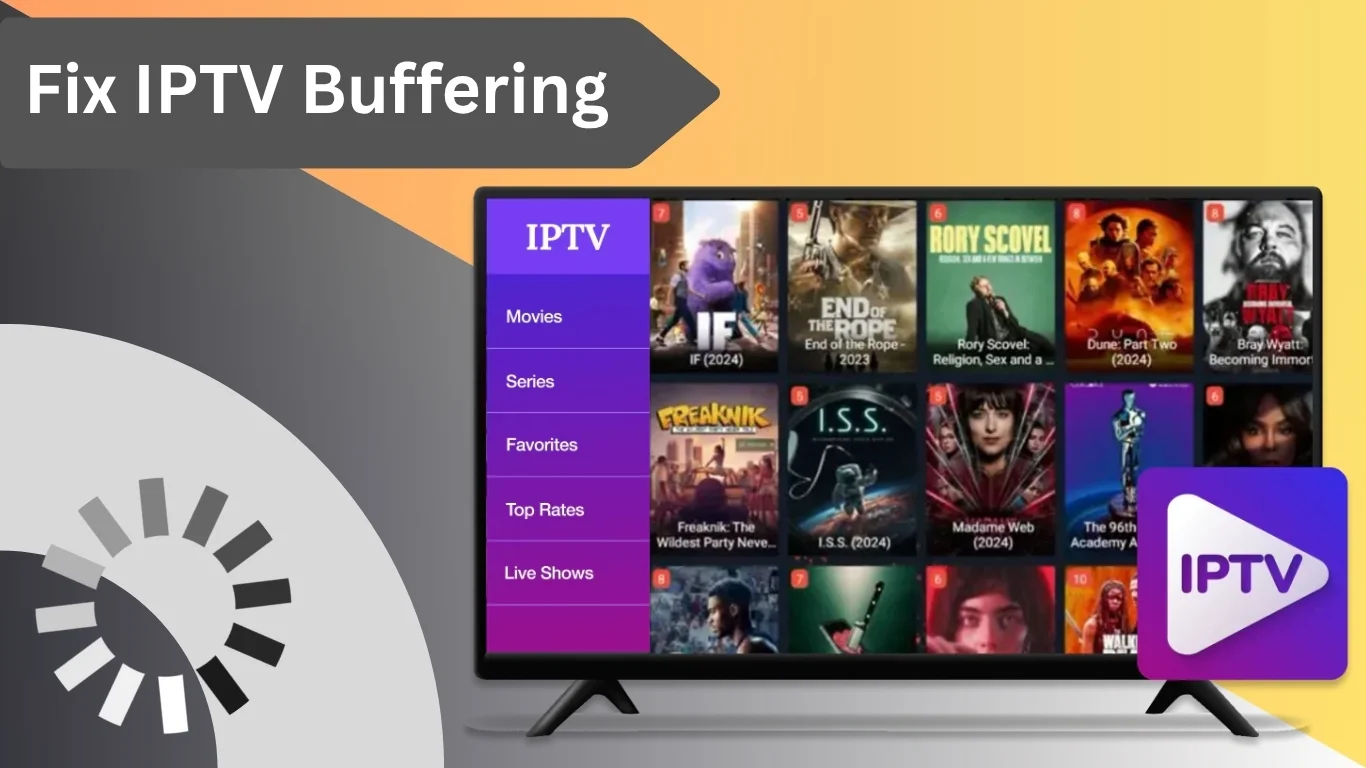
Nothing ruins a good movie night like constant buffering. If you use an IPTV service, you’ve probably experienced moments when the stream pauses to load or the video lags. IPTV buffering issues are common but fixable with the right techniques.
In this guide, we’ll explore the most common causes of buffering and share effective ways to resolve them. Whether you use an IPTV UK Provider, 4K IPTV Subscription, or any other UK IPTV Service, these solutions apply to all.
What Causes IPTV Buffering?
Before you can fix IPTV buffering problems, it’s important to understand the root causes. Buffering occurs when your IPTV device cannot download data fast enough to play the video continuously. Common causes include:
- Slow Internet Connection – Insufficient bandwidth causes your IPTV to struggle when streaming HD or 4K content.
- Overloaded IPTV Server – If too many users connect to the same IPTV server, it can slow down data delivery.
- Wi-Fi Interference – Weak or unstable Wi-Fi signals lead to inconsistent streaming.
- Outdated Hardware or Software – Old devices, firmware, or apps can cause playback issues.
- ISP Throttling – Some Internet Service Providers may intentionally slow down streaming data.
- High Traffic Times – Peak usage hours can affect your connection speed.
Step-by-Step Solutions to Fix IPTV Buffering Issues
1. Check Your Internet Speed
A strong internet connection is the foundation of smooth IPTV streaming. For HD IPTV, you should have at least 10 Mbps, and for 4K IPTV, a minimum of 25 Mbps is recommended.
How to check:
- Use Speedtest.net or a similar service.
- Test both download and upload speeds.
If your speeds are consistently low, contact your ISP or consider upgrading your plan.
2. Use a Wired Ethernet Connection
Wi-Fi may be convenient, but it’s not always reliable. A wired Ethernet cable offers a more stable and faster connection.
Why it helps:
- Reduces signal interference.
- Ensures consistent data flow to your IPTV device.
If you must use Wi-Fi, position your router close to your device and avoid physical obstructions.
3. Reboot Your Router and IPTV Device
Sometimes, a simple restart can solve buffering issues.
Steps:
- Turn off your IPTV device and unplug your router.
- Wait at least 60 seconds.
- Plug them back in and allow them to reboot fully.
This clears temporary network errors and refreshes your connection.
4. Reduce Network Load
Too many connected devices can slow down your connection. Streaming IPTV while others are gaming, downloading, or using video calls can cause buffering.
Tips:
- Limit background downloads.
- Disconnect unused devices.
- Use Quality of Service (QoS) settings on your router to prioritize IPTV traffic.
5. Clear IPTV App Cache
Over time, cached data can cause playback problems. Clearing the cache in your IPTV player can improve performance.
To clear cache:
- Go to Settings > Apps > Your IPTV App > Storage > Clear Cache.
- Restart your device afterward.
6. Update Your IPTV App and Device Firmware
Outdated apps or firmware may not handle modern streaming protocols efficiently.
What to do:
- Check for updates in your IPTV app store.
- Update your device’s operating system or firmware.
New versions often fix bugs that cause freezing or lag.
7. Change Your IPTV Server or Playlist
If you use an IPTV UK Provider or 4K IPTV Subscription, try switching to another available server. Overcrowded servers can slow down streaming speeds.
Most IPTV apps allow you to:
- Change server URLs.
- Refresh or update your M3U playlist.
- Remove inactive or expired channels.
8. Adjust Video Player Settings
Lowering the streaming resolution can help if your internet speed is inconsistent.
For example:
- Change from 4K to 1080p or 720p.
- Enable adaptive bitrate streaming (if available).
This balances quality and performance based on your connection.
9. Use a VPN (Virtual Private Network)
Some ISPs throttle IPTV data. Using a VPN can bypass such restrictions and stabilize streaming.
Benefits:
- Hides your traffic from your ISP.
- Reduces buffering due to throttling.
- Enhances privacy.
Choose a fast VPN with servers near your location to maintain speed.
10. Change Your DNS Settings
DNS servers translate website addresses into IPs. Using faster DNS can improve connectivity.
Recommended DNS options:
- Google DNS: 8.8.8.8 / 8.8.4.4
- Cloudflare DNS: 1.1.1.1 / 1.0.0.1
You can update these in your router or IPTV device’s network settings.
11. Avoid Using Free IPTV Apps
Free IPTV apps often use overloaded servers that can’t handle heavy traffic. Paid or reliable IPTV services tend to offer better stability and dedicated support.
When choosing a provider, look for:
- Consistent uptime.
- Active support.
- Regular channel updates.
12. Use a Streaming Device Optimized for IPTV
Devices like Amazon Fire TV Stick, Nvidia Shield, or Android TV Boxes are designed for smooth video streaming. Please make sure yours supports hardware acceleration and HEVC (H.265) decoding for best results.
13. Check for Background Processes
Other apps running in the background can consume CPU and bandwidth; close unnecessary apps before starting your IPTV stream.
On Android:
- Go to Settings > Apps > Running Apps > Stop Unused Apps.
14. Avoid Peak Streaming Hours
Stream during non-peak hours. Between midnight and early morning, network congestion is usually lower, resulting in fewer buffering interruptions.
Advanced Solutions for Persistent Buffering
If the basic steps don’t help, try the following advanced fixes:
Use an IPTV-Optimized Router
Routers with better CPU power and dual-band capability can handle IPTV data more efficiently. Consider models supporting MU-MIMO and beamforming technology.
Configure QoS (Quality of Service)
Most routers have a QoS feature that prioritizes IPTV traffic. Log in to your router’s dashboard and set your IPTV device to “high priority.”
Replace Old Cables
Outdated or damaged Ethernet cables (Cat 5 or below) can reduce speed. Upgrade to Cat 6 or Cat 7 cables for stable connections.
FAQs About Fixing IPTV Buffering
1. Why does my IPTV keep buffering even with high-speed internet?
This may be due to server congestion or ISP throttling. Try switching servers or using a VPN.
2. Can using a VPN improve IPTV performance?
Yes, a VPN can bypass throttling and ensure stable connections, especially with providers known to restrict streaming.
3. Does IPTV buffering depend on the provider?
Yes. The reliability of your IPTV UK Provider or UK IPTV Service impacts buffering. Providers with strong infrastructure deliver smoother streaming.
4. What internet speed do I need for IPTV?
For HD content: at least 10 Mbps. For 4K content: 25 Mbps or higher.
5. Why is my IPTV freezing on specific channels?
That particular server or channel stream may be unstable. Try switching to a backup link or alternate channel.
Conclusion
IPTV buffering issues can be frustrating, but they’re not unbeatable. By optimizing your connection, adjusting settings, and ensuring your device and app are up-to-date, you can enjoy seamless viewing.
A stable internet connection, wired setup, and reliable IPTV service are the cornerstones of smooth streaming. Take time to apply these fixes, and you’ll transform your viewing experience from laggy to lightning-fast.
For further technical insights on how streaming works, visit Wikipedia’s article on Streaming Media.
Simple, Transparent Pricing
Choose the plan that works best for you. All plans include our 30-Day Money-Back Guarantee.
Limited Time Flash Sale!
Prices will return to normal after the timer ends.
Monthly
Perfect for trying out our service
-
28,000+ Live TV Channels
-
Full HD & 4K Quality
-
7-Day Catch Up
-
VOD Library (Movies & Series)
-
Use on 1 Device
-
24/7 Support via WhatsApp
3 Months
Great value for short term
-
28,000+ Live TV Channels
-
Full HD & 4K Quality
-
7-Day Catch Up
-
VOD Library (Movies & Series)
-
Use on 2 Devices Simultaneously
-
24/7 Support via WhatsApp
-
Save over 20% vs Monthly
Annual
Best value for loyal customers
12 Months + 2 Months FREE
-
28,000+ Live TV Channels
-
Full HD & 4K Quality
-
7-Day Catch Up & Recording
-
Premium VOD Library (Updated Daily)
-
Use on 3 Devices Simultaneously
-
VIP 24/7 Support
-
Save over 60% vs Monthly
-
Free Setup Assistance
Quarterly
Popular choice for commitment
-
28,000+ Live TV Channels
-
Full HD & 4K Quality
-
7-Day Catch Up & Recording
-
Extensive VOD Library
-
Use on 2 Devices Simultaneously
-
Priority 24/7 Support
-
Early access to new features
Secure Payment Options
We accept various secure payment methods for your convenience.
Ready for a Longer Test Drive?
Experience the full power of 4K Subscription IPTV with our exclusive 24-hour free trial. Access all 28,000+ channels, VOD, and premium features with no obligation. It's the perfect way to see why we're the UK's favourite IPTV provider!
Contact Us
Have questions or need assistance? We're here to help!
Get in Touch
Email Us
contact@4kukiptv.shop
Available 24/7
Call Us
+447424116014
Available 24/7
Live Chat
Available on our website
Response time: Under 5 minutes
Our Hours
Customer Support: 24/7
Sales Department: Mon-Fri, 9am-6pm GMT
Technical Support: 24/7