How To Set Up IPTV On MAG Box: With Our Detailed Guide Tutorial
Introduction
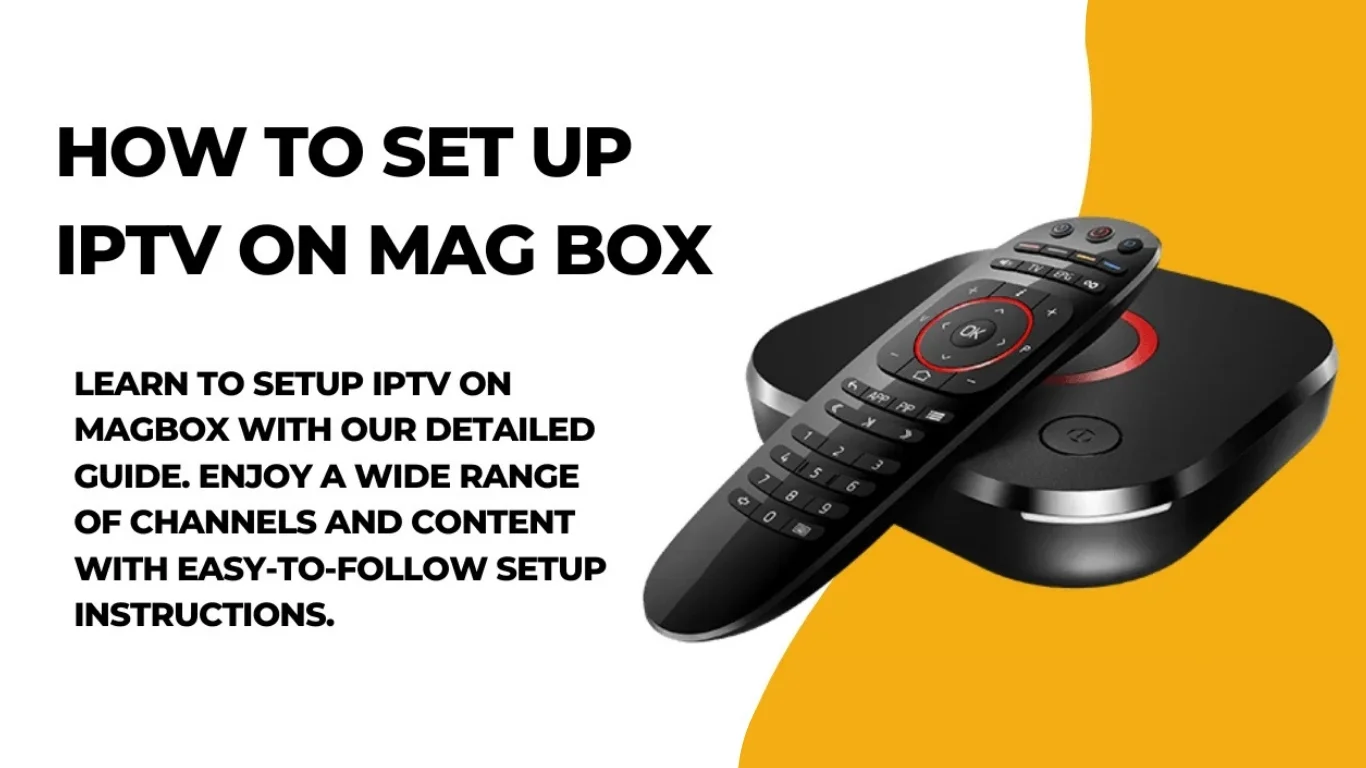
What Is a MAG Box?
Key Features of MAG Boxes:
- Supports 4K IPTV services for ultra HD streaming.
- Offers Ethernet and Wi-Fi connectivity.
- User-friendly interface ideal for beginners.
- Compatible with Stalker Middleware or Xtream Codes API.
- Fast boot time and minimal buffering.
Requirements Before Setting Up IPTV on MAG Box
- MAG Box (MAG 250, MAG 254, MAG 322, MAG 410, MAG 524, etc.)
- Stable Internet Connection (minimum 15 Mbps for HD/4K)
- TV or Monitor with HDMI port
- Subscription from a Reliable IPTV UK Provider
- Portal URL (provided by your IPTV service)
- Remote Control (comes with the MAG Box)
- Power Adapter and HDMI Cable
Step-by-Step Guide: How To Set Up IPTV on MAG Box
Step 1: Connect Your MAG Box to Your TV
- Plug one end of the HDMI cable into your MAG Box and the other into your TV.
- Connect the power cable and turn on the device.
- Use your TV remote to select the correct HDMI input.
Step 2: Connect to the Internet
- Wired Connection: Plug an Ethernet cable directly from your router to the MAG Box for a stable connection.
- Wireless Connection:
- Go to Settings > Network > Wireless (Wi-Fi)
- Select your Wi-Fi network and enter your password.
Step 3: Locate the MAC Address

- On the bottom of your MAG Box, or
- In Settings > System Info > Device Info.
Step 4: Configure the Portal URL
- Go to Settings > System Settings > Servers > Portals.
- You’ll see fields like:
- Portal 1 Name: (e.g., UK IPTV)
- Portal 1 URL: (enter the URL provided by your IPTV provider)
- Leave Portal 2 empty unless you have another provider.
- Press OK or Save, then reboot your device.
Step 5: Navigating the IPTV Interface
- Live TV Channels – categorized by genre or country.
- VOD (Video On Demand) – movies, TV shows, and documentaries.
- EPG (Electronic Program Guide) – schedules of upcoming programs.
- Settings – adjust subtitles, resolution, and audio options.
Step 6: Troubleshooting Common Issues
1. No Signal / Blank Screen
- Check HDMI cable connection.
- Ensure the correct HDMI input is selected on your TV.
2. Portal Not Loading
- Recheck your Portal URL for typos.
- Confirm your internet connection is stable.
- Restart both your router and MAG Box.
3. MAC Address Not Registered
- Ensure you’ve provided the correct MAC address to your provider.
- Contact your IPTV subscription support team for activation.
4. Buffering or Freezing Streams
- Switch to a wired Ethernet connection.
- Lower the video resolution.
- Use a VPN if your ISP throttles IPTV traffic.
Step 7: Update Firmware (Optional but Recommended)
- Go to Settings > System Settings > Software Update
- Choose Update Automatically or USB Update (if downloaded manually)
- Restart the box after updating.
Alternative Setup: Xtream Codes API (For Advanced Users)
- Server URL
- Username
- Password
- Go to Settings > Advanced Settings > Add Portal.
- Select Use Xtream Codes API.
- Enter your login credentials.
- Save and restart the box.
Benefits of Using IPTV on MAG Box
- High-Quality Streaming – Supports HD and 4K IPTV services.
- User-Friendly Interface – Easy navigation and instant channel loading.
- Reliable Performance – Designed specifically for IPTV streaming.
- Multiple Portal Support – Connects to multiple providers if needed.
- Parental Control and EPG Integration – Ideal for family use.
Best Practices for Smooth IPTV Experience
- Always use a wired connection for optimal stability.
- Avoid cheap or unverified IPTV links.
- Keep your device’s firmware updated.
- Reboot your MAG Box weekly to clear cache.
- Use VPN for privacy and improved streaming speeds.
FAQs: How To Set Up IPTV On MAG Box
Q1: Can I use any IPTV provider on a MAG Box?
Q2: What is the difference between Portal URL and Xtream Codes?
Q3: Do I need a VPN for IPTV?
Q4: Can I install apps on my MAG Box?
Q5: Why is my IPTV freezing?
Q6: Is IPTV legal in the UK?
Conclusion
Conclusion
To conclude, How To Set Up IPTV On MAG Box: With Our Detailed Guide Tutorial provides valuable insights into improving your IPTV experience on any device.
By following the steps in this guide, you can enjoy smooth and high-quality streaming with ease.
Always rely on a trusted IPTV provider, keep your app updated, and maintain a stable internet connection for the best performance.
For reliable IPTV services in the UK, visit
4K Subscription —
your go-to destination for premium IPTV UK subscriptions.
Contact Us
Have questions or need assistance? We're here to help!
Get in Touch
Email Us
contact@4kukiptv.shop
Available 24/7
Call Us
+447424116014
Available 24/7
Live Chat
Available on our website
Response time: Under 5 minutes
Our Hours
Customer Support: 24/7
Sales Department: Mon-Fri, 9am-6pm GMT
Technical Support: 24/7